
The Steam Deck has taken the gaming world by storm, combining the power of a gaming PC with the portability of a handheld console. But wait—there’s more! What if you could unlock a treasure trove of classic games and nostalgic favorites right in your pocket? That’s where emulators come into play, transforming the Steam Deck into a retro gaming paradise.
Overview of Emulator on Steam Deck
Emulators on the Steam Deck provide the ability to run games from various platforms, enhancing the gaming experience. Users can access classic titles from consoles like Nintendo and Sega, creating a nostalgic atmosphere while playing. This handheld device combines power and portability, allowing seamless gameplay.
Enhanced compatibility features allow numerous emulators to be installed effortlessly. Popular choices include RetroArch and Yuzu, which support multiple gaming libraries. Customizing settings ensures optimal performance for different games, making the experience smooth and enjoyable.
Installation processes often involve straightforward steps. Users can download emulator files and required BIOS files from trusted sources. After that, configurations typically include setting file paths and tweaking performance settings.
Game libraries can be extensive. Players may find thousands of titles available for download for free or through purchase. Using the Steam Deck’s large screen and controls significantly improves gameplay quality.
Performance varies by emulator and game. Some classic titles run flawlessly, while others might require adjustments. Testing different configurations allows players to find their ideal setup.
Community support is robust. Forums and social media groups provide valuable insights and troubleshooting tips. Collaborating with other users helps to resolve issues and share information on the latest developments in emulation technology.
The Steam Deck transforms into a retro gaming powerhouse, appealing to both casual gamers and enthusiasts. Emulators play a central role in this transformation, offering access to cherished classics and expanding the gaming landscape.
Benefits of Using Emulators
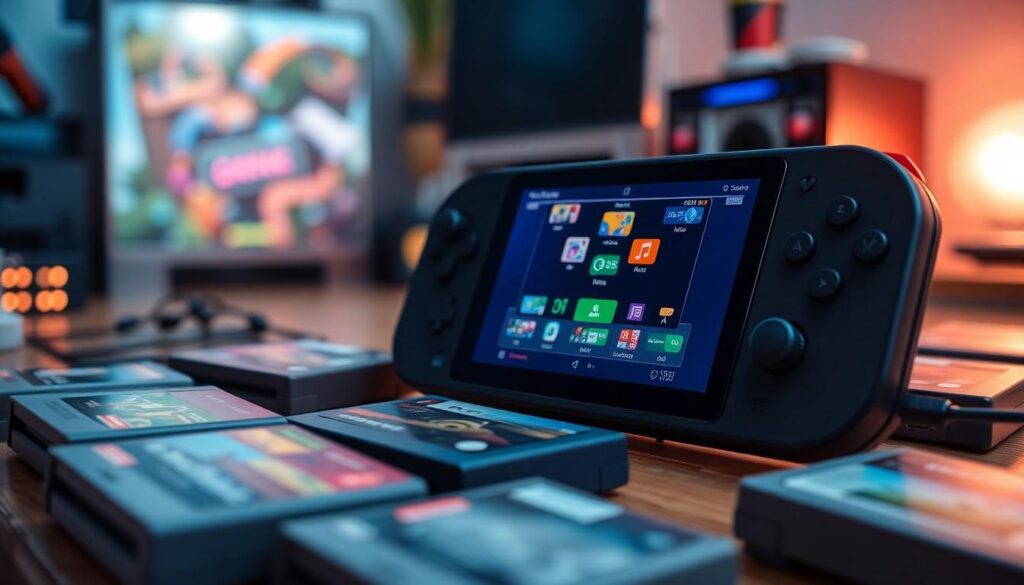
Using emulators on the Steam Deck offers several advantages, enhancing the overall gaming experience for users. These benefits include improved gameplay and access to a broad selection of classic games.
Enhanced Gaming Experience
Emulators provide advanced graphics enhancements that breathe new life into older titles. Users enjoy smoother frame rates, increased resolutions, and customizable controls. Gamers can adjust settings according to personal preferences, optimizing performance for specific games. Features like save states enable quick saves at critical moments, reducing frustration. Additionally, users benefit from enhanced audio quality, making classic soundtracks more vibrant and engaging. The combination of portable hardware and powerful emulators translates into an enjoyable gaming experience that rivals modern consoles.
Access to Classic Titles
Accessing classic titles represents a significant advantage of using emulators. Platforms like Nintendo, Sega, and more contribute a vast library of beloved games, many of which are unavailable on current consoles. With emulators, players download old favorites and explore hidden gems. Thousands of titles await, ranging from timeless classics to obscure games, enriching the gaming catalog available. Users can experience nostalgic adventures while discovering new gameplay styles. Moreover, the wide availability of free ROMs expands accessibility, allowing gamers to play without hefty investments. Overall, emulators create a bridge between past and present gaming, catering to different interests.
Popular Emulators for Steam Deck
Emulators on the Steam Deck enhance retro gaming experiences. Several popular options provide access to classic games.
RetroArch
RetroArch stands out as a versatile emulator for the Steam Deck. It supports a wide range of systems, including NES, SNES, Genesis, and PlayStation. Users appreciate its modular architecture, allowing them to add cores for various platforms. Features like shaders and netplay enhance the gaming experience. Furthermore, RetroArch includes customizable controls, letting players fine-tune their setups. Installation involves downloading the emulator, configuring settings, and obtaining required BIOS files. Community forums offer abundant resources for troubleshooting and optimization. Many gamers enjoy the extensive library available, which breathes new life into old favorites.
Dolphin Emulator
Dolphin Emulator specifically targets GameCube and Wii titles. This emulator excels in its ability to upscale graphics, delivering a visually enhanced experience. Compatibility rates are high, with numerous titles running smoothly on the Steam Deck. Users find the adjustable control schemes beneficial, allowing them to tailor gameplay. Many appreciate features like save states and improved audio, enriching the overall experience. Furthermore, online multiplayer modes enable competitive play. The installation process is user-friendly, fostering accessibility for players. Gamers praise Dolphin for its active development, ensuring compatibility with new titles and ongoing support.
Yuzu Emulator
Yuzu Emulator specializes in Nintendo Switch games. This emulator impresses with its capability to run demanding titles at better frame rates and resolutions. Installation requires downloading Yuzu and necessary files, making it straightforward. Players enjoy the enhanced performance, often experiencing smoother gameplay compared to standard consoles. The customizable settings allow for adjustments based on individual preferences. Many users highlight the community support for troubleshooting and game optimization. Frequent updates ensure continuous improvements in compatibility and performance, making Yuzu a top choice for Steam Deck users. UICollectionView elements from the library—like new releases or classic favorites—expand the gaming catalog.
Setting Up an Emulator on Steam Deck
Setting up an emulator on the Steam Deck brings nostalgic gaming experiences to life. Users can easily explore classic titles with the right tools and simple steps.
Installation Process
Start by downloading the emulator files from official sources. RetroArch, Dolphin, and Yuzu are popular options worth considering. Ensure to gather necessary BIOS files specific to the emulator. Players must install these files within the Steam Deck’s system. Use the Discover Software Center for a user-friendly installation option. After installation, access the emulator through the application launcher. Immediately, users can begin importing game ROMs. Place these files in designated folders for easy access. Completing this process opens up a world of retro gaming.
Configuration Tips
Configure emulator settings to maximize performance on the Steam Deck. Adjust graphics options to suit the game being played. Customizing control mappings enhances gameplay comfort. For smoother frame rates, reduce resolution or enable performance modes. Experiment with shader settings for improved visual quality. Save states provide opportunities to pause and resume gameplay easily. Accessibility features within the emulators can enhance overall user experience. Connecting to online forums offers additional community-driven tips and support. Utilizing these configuration strategies ensures an enjoyable gaming experience.
Performance Considerations
Performance on the Steam Deck relies heavily on emulator choice and hardware capabilities. Understanding hardware limitations helps users make informed decisions about potential gaming experiences.
Hardware Limitations
Users encounter specific hardware limitations while using emulators on the Steam Deck, including CPU power and GPU performance. The device runs on AMD’s custom APU, which excels at running many older titles but struggles with resource-intensive games. Targeting systems like PlayStation 2 or GameCube may require adjusting settings for smoother performance. Game resolution and frame rates also depend on the emulator’s optimization to align with Steam Deck’s capabilities. Heavier games typically experience lower frame rates and can slow down during complex scenes. Balancing game resolution and graphical fidelity ensures users maximize their gameplay experience.
Optimizing Settings
Optimizing settings can greatly enhance gaming performance on the Steam Deck. Begin by adjusting graphics options like resolution and anti-aliasing, which significantly impact frame rates. Users can enable or disable features like V-Sync to minimize screen tearing, depending on personal preference. Configuring control mappings provides a tailored experience, making gameplay more comfortable. Save states also play crucial roles, allowing players to resume games without replaying sections. Leveraging community resources guides players in fine-tuning settings for various emulators. Testing different combinations ensures optimal performance for specific titles and improves the overall gaming experience.
Conclusion
Emulators on the Steam Deck transform it into a versatile gaming device that celebrates both classic and modern gaming. With easy installation and a wealth of options, users can enjoy a vast library of beloved titles from various platforms. The ability to enhance graphics and customize controls further enriches the gaming experience.
As players dive into nostalgic favorites and discover hidden gems, the Steam Deck stands out as a powerful tool for retro gaming. Community support ensures that users can optimize their setups and troubleshoot any issues. This combination of accessibility and performance solidifies the Steam Deck’s place as a must-have for gamers seeking to relive the magic of classic gaming.